Pasture Moves
From an empty map to daily rotational moves
This walkthrough covers the whole system: one-time pasture setup (boundary, cross fences, reference paddocks), then the two daily-move styles — Move Mode for on-the-fly strip grazing with temporary lanes, and Fixed Paddocks for rotating between named cells.
The 10,000-ft view
- Pastures — one-time setup: property lines and permanent infrastructure.
- Animal Groups — create at least one group (moves are recorded per group).
- Paddocks — the daily driver: record where the animals are and move them.
Before you start: create an animal group
Every move is recorded for a group of animals, so the move forms won't submit until at least one group exists. Open Animal Groups and use the quick-add: tap a species (🐑 Sheep), enter how many ("25"), name it ("Ewes"), tap Add. You don't need to name individual animals.
Part 1 — Set up a pasture (one-time)
Open Pastures. Enter a Pasture name ("North Pasture"), optionally acres and notes, and tap Create pasture. Then work down the three steps on the page.
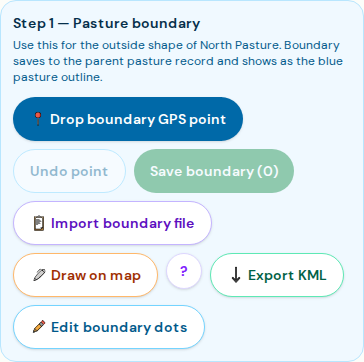
Step 1 — the boundary: GPS walk vs. draw vs. import
Tap the ? button any time for the built-in explainer:

📍 GPS walk (most accurate, you must be there). Walk to each corner and tap 📍 Drop boundary GPS point. The button shows live GPS accuracy in feet — wait for a low number (under ~15 ft) before dropping; Undo point fixes a bad drop. After at least 3 corners, tap Save boundary. Use GPS for irregular lines, tree cover, or whenever accuracy matters most.

🖊️ Draw on map (fastest, works from the couch). Tap 🖊️ Draw on map, tap each corner on the satellite image, then Done — save boundary. Use it when your fence lines are clearly visible from the sky — and check the imagery isn't older than your fences.
📋 Import a file if you already mapped the land in Google Earth or a GPS app.

Step 2 — permanent cross fences
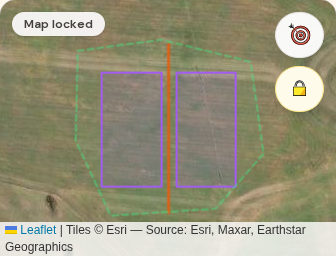
Physical, permanent fence lines (cross fences, water lanes) — drawn in orange on every map. Same two methods: ✏️ Draw fence line (tap at least 2 points) or 📍 GPS fence line (walk it). Name it and tap Finish.

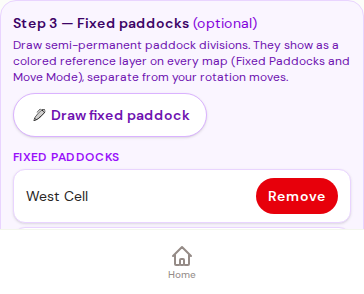
Step 3 — fixed paddocks (optional — read this twice)
Fixed paddocks here are a visual reference only: semi-permanent divisions you want to see on every map. They never hold animals. Their job is to give your daily moves context.

Part 2 — Move Mode: strip grazing with temporary lanes
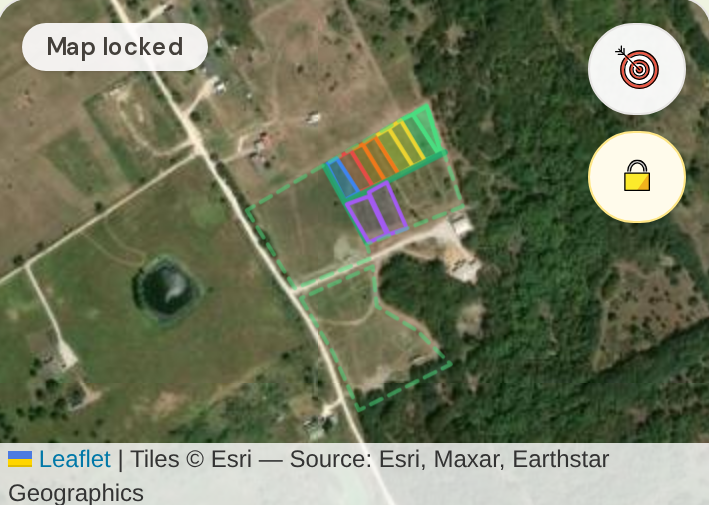
Open Paddocks; the toggle at the top should read 🐑 Move Mode. This style has no pre-named cells — just "the animals are HERE today," building a historical map of everywhere they've been.

The first lane
Fill the form: optional Area name ("Lane 1"), tap the Animal group(s) pills, set the date, Grass condition in, and Planned days here (this drives your move-due reminders). Then mark the strip under 📍 Mark strip boundary — toggle 📍 GPS Walk or 🖊️ Draw on Map and place at least 3 corners. Estimated acres auto-calculates from your boundary. Tap Record Move In.


The daily move
Tap Move Out on the Currently Grazing card. Record Grass condition on exit (your utilization note); head count, weight, and recovery period are pre-filled from your groups and history — override or hide them via ⚙ Customize fields.

Then the button that makes daily moves painless: Move Out + Move In Next. It closes the lane and opens a fresh move-in with date and groups pre-selected — tap, outline the next strip, Record Move In. Under a minute.

Recovery at a glance
Closed lanes color the map by rest time through five bands ending in ✓ Ready. Defaults are 7/14/21/30 days — both thresholds and colors are editable under 🎨 Recovery colors. History rows also show rainfall since move-out when a weather station is connected: rest + rain is the real recovery picture.

Part 3 — Fixed Paddocks: rotating between named paddocks
Flip the toggle to 📍 Fixed Paddocks and pick your pasture from the tabs. This style is the classic numbered-paddock rotation.

Draw the rotation paddocks
Tap ✏️ Draw a paddock — tap corners on the map, place at least 3 corners, name it ("Paddock A"), then Save paddock in [pasture]. There's also 📍 Add corner via GPS when you're standing on the line. These are the real, clickable paddocks.

Moving animals in — and between paddocks
Tap the paddock right on the map — an action sheet opens with Move animals in… (the list below the map has a Move in button that does the same; freshly drawn paddocks sit under Show inactive until their first use).

The move form: pick the Animals, the date, optional head count and animal-days. ▾ More options holds the grazing-chart extras — planned next move, graze/recovery days, stock density, pre-graze condition, post-graze residual, forage estimate, water access. Fill what you track; ignore the rest.

Once placed, the planner's big status button counts down: "N days until move" → Move today → → Move now → (overdue). Tap it to advance to the next paddock, or ↪ Move early if you misjudged the size. To move to a specific paddock, just tap that paddock and record the move; More… → Move to… on a list row does the same, and Transfer out sends the animals to a different pasture entirely.

Advanced: the 4-step hotwire strip capture
Running polywire strips inside a fixed pasture? Place animals here starts a guided capture: two GPS points on the back wire, two on the front wire, and the strip fills in automatically. The payoff comes at every following move — Move strip forward reuses your old front wire as the new back wire, so a daily move is just two GPS points at the new front.

GPS vs. drawing — the honest comparison
| 📍 GPS walk | 🖊️ Draw on screen | |
|---|---|---|
| Accuracy | Survey-grade with a good fix | As good as your eye on the photo |
| You must be | At each corner | Anywhere |
| Best for | Boundaries, hotwire strips, tree cover | Visible fences, quick lanes, planning |
| Watch for | "⚠️ weak fix" — undo & re-drop | Outdated satellite imagery |
Rule of thumb: permanent infrastructure deserves GPS; daily lanes are fine drawn. Mixing is normal — a GPS boundary with drawn lanes is the most common setup.
Troubleshooting
- "Record Move In" disabled — no animal group selected (or none exists yet).
- Map opens zoomed way out — nothing saved yet; save any boundary or point and it anchors to your land from then on.
- Wrong point placed — every flow has Undo; saved boundaries have ✏️ Edit boundary dots.
- KML import shows nothing — re-export with File → Export as KML file (not "Save Place As").
- Paddock isn't clickable for moves — it's a Step-3 reference paddock; draw a rotation paddock in Fixed Paddocks mode instead.
More quick answers in the Help & FAQ.