Plan Your Garden
Beds, square-foot planting, harvests
Lay out your beds once, then plant square by square — the app knows 16 carrots or 1 tomato fit per square foot and draws them on your bed so you can see the whole garden at a glance.
Set up your beds
- 1Open Garden from the home screen and tap + Add bed.
- 2Name it, set the size (a classic 4×8 raised bed, a circle, whatever you have) and save.
- 3Beds appear on the planner — tap ✏️ Edit layout to drag them around to match your real garden.
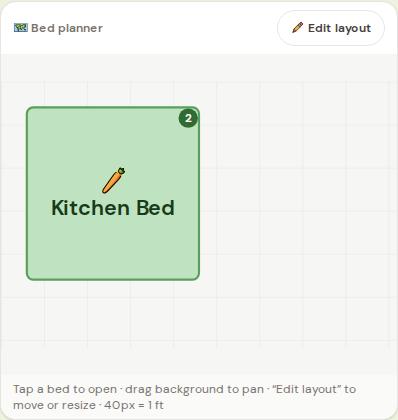
Plant square by square
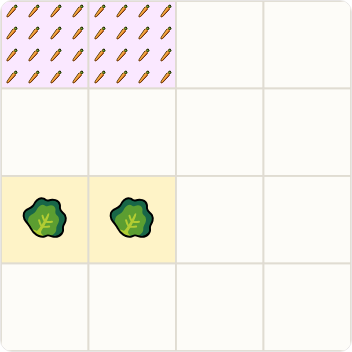
- 1Tap a bed — it opens with a grid of 1-foot squares.
- 2Tap ➕ New planting on the grid, then tap the squares you're planting.
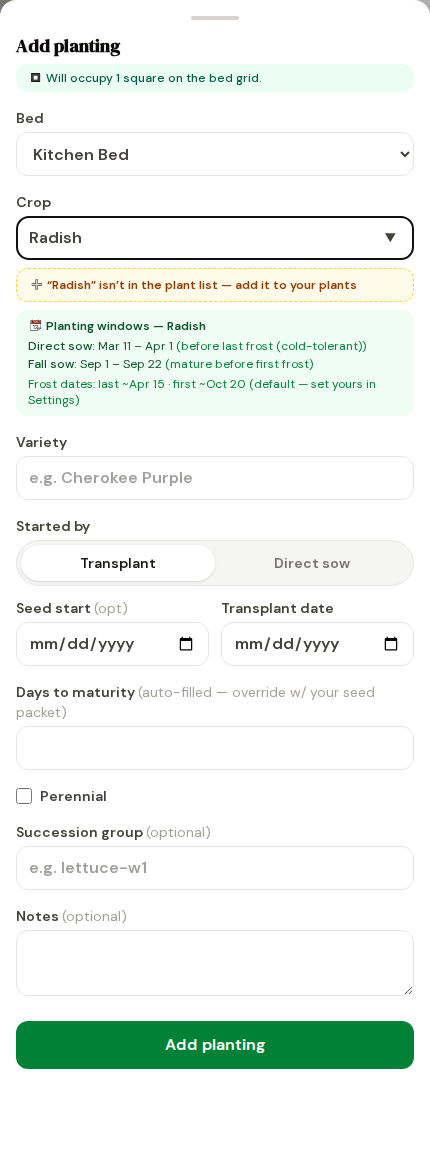
- 3Pick the crop. The app fills in days-to-maturity and shows how many plants fit — 16 carrots per square, 4 lettuce, 1 tomato.
- 4Save. The squares show your crop at its real density.
Working the garden
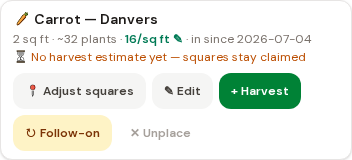
Tap any planted square to see that planting — days in the ground, estimated harvest, and a + Harvestbutton when picking starts. Done or failed plantings free their squares automatically, and (with Plus) you can plan the next crop into the same squares before the current one finishes — radishes in April, carrots in June.
The garden to-do on the main Garden page tells you when to water, when frost threatens, and when planting windows open for your area.
Plus bed-grid tools
A few things on the bed grid are Plus features:
- 1Companion/conflict rings.While you're placing or adjusting a planting on the grid, any already-occupied square gets a colored outline — green if that crop is a good neighbor, red if it's one to avoid — so you can see clashes before you save the layout.
- 2Succession planting.Once one planting's season ends, Plus lets you queue up the next crop in the same squares before the first is even done — the card for a planting shows "Squares free up ~[date]" so you know when the next one can move in. Free accounts can only place a new planting on squares that are completely empty.
- 3Month scrubber.The ◀ Today ▶ control above the grid steps the view backward or forward a month at a time, so you can check what a bed looked like earlier in the season or what it'll look like once a later planting takes over.